React forms and controlled inputs
A React form can work with zero useState: see it print every field in the first 15 seconds, sent the React 19 way, with the action prop. Then find out what the browser already does for a form, why an input with a value can't be typed in, what state adds and what it costs, and why showing a code in capitals is a job for one line of CSS, not state. It ends with a two-question test for choosing between a controlled and an uncontrolled input.

In this lesson
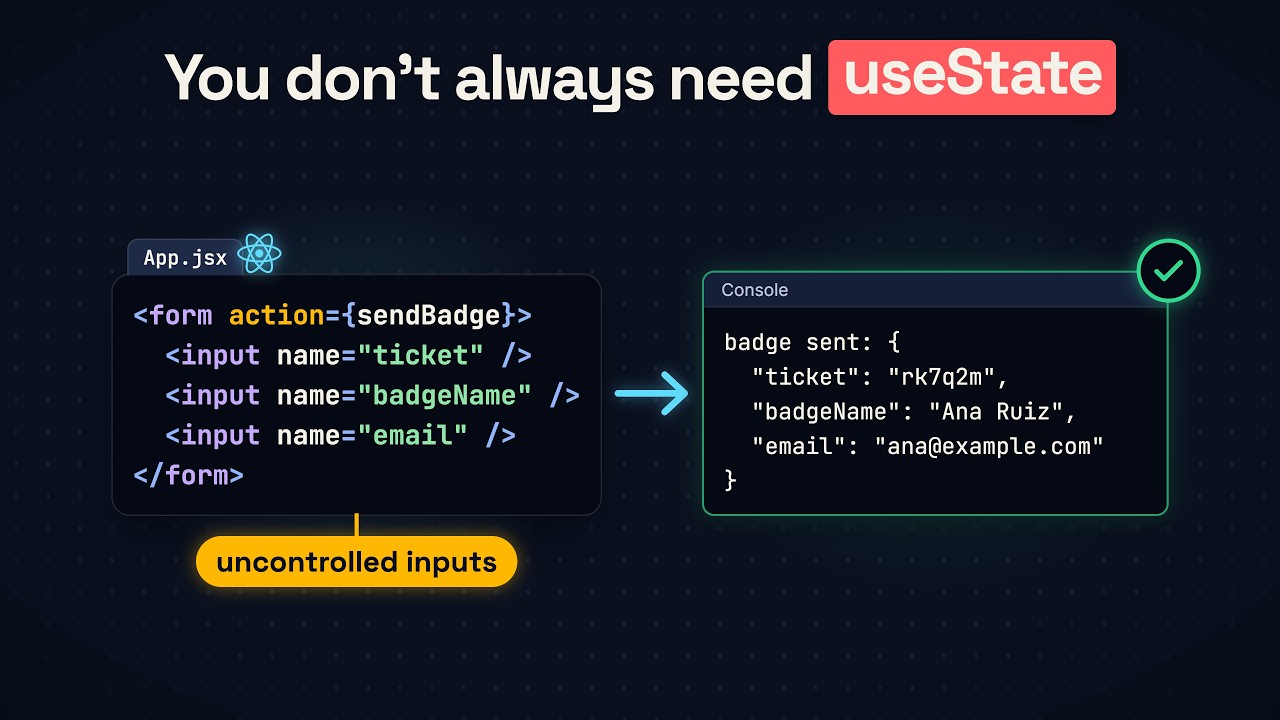
This React form has three fields and zero useState, and it still reads everything typed into it. Type a ticket code, a name for the badge, and an email to send the badge to. Click Get badge, and the console has all three.
So does every React input need useState? To read a form, no. The browser already keeps the text of each field, and since React 19 a prop called action gives all of it to one function. But reading is not all a form does. This form should also draw the badge while the name is typed, and for that your code needs the name before the button is clicked. This lesson builds the form up one need at a time: what a form gets for free, what state adds, and what state costs. And one question to think about on the way: the ticket code should show in capitals as it’s typed. State, or no state?
The code runs in a React project made with Vite (npm create vite@latest, then React and JavaScript), the same kind of project as the last lessons. JSX doesn’t run in plain JavaScript, so you need that build step. Each example replaces src/App.jsx.
Sent with action
Start with what the form gets for free. This is the whole app:
export default function App() {
  function sendBadge(formData) {
    const data = Object.fromEntries(formData)
    console.log('badge sent: ' + JSON.stringify(data))
  }

  return (
    <form action={sendBadge}>
      <h2>Get your badge</h2>

      <label htmlFor="ticket">Ticket code</label>
      <input id="ticket" name="ticket" />

      <label htmlFor="badgeName">Name on badge</label>
      <input id="badgeName" name="badgeName" />

      <label htmlFor="email">Email</label>
      <input id="email" name="email" />

      <button>Get badge</button>
    </form>
  )
}
The form has an action prop, and its value is your function. When the button is clicked, React calls your function with an object called FormData. FormData holds each field’s text under the field’s name. One line, Object.fromEntries(formData), turns it into a plain object. Type rk7q2m, Ana Ruiz and ana@example.com, click Get badge, and the console prints:
badge sent: {"ticket":"rk7q2m","badgeName":"Ana Ruiz","email":"ana@example.com"}Then React empties the form: all three fields are blank again. In this form React stores no field’s text. React’s word for a field like that is an uncontrolled input.
The action prop takes a function since React 19, and React’s docs call it the preferred way to send a form. In older code, and in plenty of today’s, you’ll find onSubmit instead, with a handler whose first line is preventDefault:
function handleSubmit(event) {
  event.preventDefault()
  const data = Object.fromEntries(new FormData(event.target))
  console.log('badge sent: ' + JSON.stringify(data))
}

return (
  <form onSubmit={handleSubmit}>
Without that first line, the browser submits the form itself. The page loads again with three empty fields, and the email is in the address bar: ?ticket=rk7q2m&badgeName=Ana+Ruiz&email=ana%40example.com. With the action prop there is no such line to forget.
The browser checks
The browser does a second job for free: it checks. Mark every field as required, and give the email the type email:
<input id="ticket" name="ticket" required />

<input id="badgeName" name="badgeName" required />

<input id="email" name="email" type="email" required />
Now fill in the ticket code and the name, leave the email empty, and click Get badge. Your function isn’t called, and the console stays empty. The browser stops the form, puts the cursor in the email field and shows a message of its own. In Chrome it says Please fill out this field. Type half an address, ana, and the message asks for the at sign: Please include an '@' in the email address. 'ana' is missing an '@'.
So the browser stores the text and checks it, and React hands it to your function. None of them gives your code the name while it’s being typed.
React takes the text
Now the badge. Beside the form, the page should draw the badge and print the name on it as the name is typed. So the name goes into state: a variable called badgeName that starts as an empty string. Then the field gets badgeName as its value:
import { useState } from 'react'

export default function App() {
const [badgeName] = useState('')<input id="badgeName" name="badgeName" value={badgeName} required />Type a name. Guess what the field shows.
Nothing. Passing a value tells React to keep this field equal to the state at all times. The browser put your letter in the field, but the state was still an empty string, so React put the empty string back before the screen was drawn. React did warn you. When the page loaded, the console printed an error that calls the field read-only:
You provided a `value` prop to a form field without an `onChange` handler. This will render a read-only field. If the field should be mutable use `defaultValue`. Otherwise, set either `onChange` or `readOnly`.The text can change only if the state changes. So add onChange, a handler that runs every time the field’s text changes, and have it copy the field’s text into the state. Here is the form with the badge drawn under the name:
import { useState } from 'react'

export default function App() {
  const [badgeName, setBadgeName] = useState('')
  const tooLong = badgeName.length > 16

  function sendBadge(formData) {
    const data = Object.fromEntries(formData)
    console.log('badge sent: ' + JSON.stringify(data))
  }

  return (
    <form action={sendBadge}>
      <h2>Get your badge</h2>

      <label htmlFor="ticket">Ticket code</label>
      <input id="ticket" name="ticket" required />

      <label htmlFor="badgeName">Name on badge</label>
      <input
        id="badgeName"
        name="badgeName"
        value={badgeName}
        onChange={(event) => setBadgeName(event.target.value)}
        required
      />
      <p className="badge">{badgeName}</p>
      <p className="hint">
        {tooLong ? badgeName.length - 16 + ' characters too many' : 16 - badgeName.length + ' characters left'}
      </p>

      <label htmlFor="email">Email</label>
      <input id="email" name="email" type="email" required />

      <button disabled={tooLong}>Get badge</button>
    </form>
  )
}
Now every letter goes around a loop:
- The browser puts the letter in the field.
onChangecopies the text to the state.- React renders and checks that the field equals the state.
That is a controlled input. Why keep the value at all? Without it, the name would exist twice, in the field and in state, and the two could disagree.
Now the badge is one line: <p className="badge">{badgeName}</p> prints badgeName. Type Ana Ruiz, and the badge says Ana Ruiz with 8 characters left under it. A rule takes a few more lines. The badge fits sixteen characters. Past sixteen, a warning says how many characters are over, and the button is switched off: type Ana Ruiz Fernandez Ortega, and the page says 9 characters too many, and Get badge can’t be clicked.
So what did that state cost?
What state costs
Send a badge. Fill the three fields and click Get badge. Guess which fields are empty now.
The ticket code and the email. The name is still in its field, and still on the badge. After your function runs, React empties the fields it doesn’t control. It leaves the name alone, because the name is in your state.
That is the first cost of state: your code has to clear the name itself. One more line in your function sets badgeName back to an empty string:
function sendBadge(formData) {
  const data = Object.fromEntries(formData)
  console.log('badge sent: ' + JSON.stringify(data))
  setBadgeName('')
}
Send again, and all three fields are empty, the badge is blank, and the hint says 16 characters left. That line also shows what state gives you: your code can change the field.
The second cost is harder to see. This component now renders on every letter of the name. Typing in the ticket code or the email renders nothing. To watch it, put console.log('render') on the line after tooLong, then type in each field. Only the name’s letters print render. In development each render prints twice, because the Vite template wraps the app in Strict Mode.
Capitals: state or no state?
That leaves the ticket code, and the question from the start. The code should show in capitals as it’s typed. State, or no state?
It looks like state, so try state first. Give the ticket code its own state, and have onChange store the text in capitals:
const [ticket, setTicket] = useState('')<input
id="ticket"
name="ticket"
value={ticket}
onChange={(event) => setTicket(event.target.value.toUpperCase())}
required
/>Typing rk7q2m shows RK7Q2M. Now go back and type an x in the middle, after RK7. The field says RK7XQ2M, and the cursor jumps to the end of the field. React replaced the field’s text with a different text, the capital X where you typed a small one, and a field whose text is replaced puts its cursor at the end.
Now try no state. One CSS rule draws the field’s text in capitals. Add it to src/index.css:
.capitals { text-transform: uppercase; }The ticket code goes back to an uncontrolled input with that class, and your function turns the code into real capitals before sending it, with one call. This is the whole form:
import { useState } from 'react'

export default function App() {
  const [badgeName, setBadgeName] = useState('')
  const tooLong = badgeName.length > 16

  function sendBadge(formData) {
    const data = Object.fromEntries(formData)
    data.ticket = data.ticket.toUpperCase()
    console.log('badge sent: ' + JSON.stringify(data))
    setBadgeName('')
  }

  return (
    <form action={sendBadge}>
      <h2>Get your badge</h2>

      <label htmlFor="ticket">Ticket code</label>
      <input id="ticket" name="ticket" className="capitals" required />

      <label htmlFor="badgeName">Name on badge</label>
      <input
        id="badgeName"
        name="badgeName"
        value={badgeName}
        onChange={(event) => setBadgeName(event.target.value)}
        required
      />
      <p className="badge">{badgeName}</p>
      <p className="hint">
        {tooLong ? badgeName.length - 16 + ' characters too many' : 16 - badgeName.length + ' characters left'}
      </p>

      <label htmlFor="email">Email</label>
      <input id="email" name="email" type="email" required />

      <button disabled={tooLong}>Get badge</button>
    </form>
  )
}
Fill the three fields as before, then type an x in the ticket code after rk7. The field shows RK7XQ2M, and the cursor stays where it is, after the X. The field still holds small letters, rk7xq2m. Click Get badge, and the console prints the capitals:
badge sent: {"ticket":"RK7XQ2M","badgeName":"Ana Ruiz","email":"ana@example.com"}So here is the test for any field. Two questions:
- Does the page show something from the text while it’s typed?
- Does your code change the text?
One yes means state. For the name, yes: the badge prints it on every change. For the ticket code, no. The capitals are only drawn, and the field still holds small letters. For the email, no.
An interviewer would name these two answers:
- Controlled: the text is in state, and the field takes that state as its value.
- Uncontrolled: the field keeps the text, and your code reads it once.
In one line
A field’s text lives in the field until the page needs it while it’s typed or your code needs to change it, and only then does it go into state, with value and onChange together. Now you can look at a field and say where its text should live: in the field, or in state. Next in this course: objects and arrays in state, and why changing an object directly doesn’t update the page.
Video transcript
Zero useState
This React form has three fields and zero useState, and it still reads everything typed into it. Type a ticket code, a name for the badge, and an email to send the badge to. Click Get badge. The console has all three. So does every React input need useState? To read a form, no. The browser already keeps the text of each field. And since React 19, a prop called action gives all of it to one function. But reading is not all a form does. This form should draw the badge while the name is typed, and for that your code needs the name before the button is clicked. So the name goes into state, and the next line you write does something you won't expect. This video builds the form up one need at a time: what a form gets for free, what state adds, and what state costs. And one question to think about on the way. The ticket code should show in capitals as it's typed. State, or no state?
Sent with action
Start with what the form gets for free. The form has an action prop, and its value is your function. When the button is clicked, React calls your function with an object called FormData. FormData holds each field's text under the field's name. One line turns FormData into a plain object, and then React empties the form. In this form React stores no field's text. React's word for a field like that is an uncontrolled input. The action prop takes a function since React 19, and React's docs call it the preferred way to send a form. In older code, and in plenty of today's, you'll find onSubmit instead, with a handler whose first line is preventDefault. Without that line the browser submits the form itself: the page loads again, and the email is in the address bar. With the action prop there is no such line to forget.
The browser checks
The browser does a second job for free. It checks. Mark every field as required and give the email the type email. Now leave the email empty and click Get badge. Your function isn't called. The browser stops the form. It puts the cursor in the email field and shows a message of its own. Type half an address and the message asks for the at sign. So the browser stores the text and checks it, and React hands it to your function. None of them gives your code the name while it's being typed.
React takes the text
Now the badge. Beside the form, the page should draw the badge and print the name on it as the name is typed. So the name goes into state: a variable called badgeName that starts as an empty string. Then the field gets badgeName as its value. Type a name. Guess what the field shows.
Nothing. Passing a value tells React to keep this field equal to the state at all times. The browser put your letter in the field. The state was still an empty string. So React put the empty string back before the screen was drawn. React did warn you. The console called the field read-only when the page loaded. The text can change only if the state changes. So add onChange. It's a handler that runs every time the field's text changes. Have it copy the field's text into the state. Now every letter goes around a loop. The browser puts the letter in the field. onChange copies the text to the state. React renders and checks that the field equals the state. That is a controlled input. Why keep the value at all? Without it the name would exist twice, in the field and in state, and the two could disagree. Now the badge is one line: it prints badgeName. A rule takes a few more lines. The badge fits sixteen characters. Past sixteen, a warning says how many characters are over, and the button is switched off. So what did that state cost?
What state costs
Send a badge. Fill the three fields and click Get badge. Guess which fields are empty now.
The ticket code and the email. The name is still in its field, and still on the badge. After your function runs, React empties the fields it doesn't control. It leaves the name alone, because the name is in your state. That is the first cost of state: your code has to clear the name itself. One more line in your function sets badgeName back to an empty string. That line also shows what state gives you: your code can change the field. The second cost is harder to see. This component now renders on every letter of the name. Typing in the ticket code or the email renders nothing.
Capitals: state or no state?
That leaves the ticket code, and the question from the start. The code should show in capitals as it's typed. State, or no state?
It looks like state, so try state first. onChange stores the text in capitals, and typing a code shows capitals. Now go back and type a letter in the middle. The cursor jumps to the end of the field. React replaced the field's text with a different text, and a field whose text is replaced puts its cursor at the end. Now try no state. One CSS rule draws the field's text in capitals. The cursor stays where it is, and your function turns the code into real capitals before sending it, with one call. So here is the test for any field. Two questions. Does the page show something from the text while it's typed? Does your code change the text? One yes means state. For the name, yes: the badge prints it on every change. For the ticket code, no. The capitals are only drawn, and the field still holds small letters. For the email, no. An interviewer would name these two answers: a controlled input, and an uncontrolled input. Controlled: the text is in state, and the field takes that state as its value. Uncontrolled: the field keeps the text, and your code reads it once.
Next: objects in state
Now you can look at a field and say where its text should live: in the field, or in state. Next in this course: objects and arrays in state, and why changing an object directly doesn't update the page. The next video is on screen now.